Editing Data in the History Grid Control
The History Grid control is the main vehicle for editing* measurement data. The ability to make edits is accessible directly from the control's data grid, and additional editing options are available via the context menu. Performing an edit on an editable data item value shifts you into Edit mode and displays the Tools menu.
*Note: Editing functionality is only available in systems licensed for FULL mode.
You must have proper security authorization to save or edit history records of a specific data quality. See FMS Security (<custom>) for information about configuring security access to history records based upon data quality.
Notes:
Editing can only be performed from one History grid at a time, although multiple History grid controls can be open simultaneously.
While performing edits in one History Grid control, an icon  will appear in the status bar of each additional instance of a History Grid control to indicate that it is currently read-only. Absence of the read-only icon indicates that the History Grid control you are viewing is currently editable.
When multiple open History Grid controls display the same Node data, edits entered in the editable control will appear in the additional controls. If a new History Grid control is opened, refresh the control to display any unsaved edited data.
When edits are performed in the History Grid control, History Graph controls displaying the same Node data can access the unsaved edits by refreshing the History Graph control.
Editing Data
Several methods of editing data are available in the History Grid control. These include the following.
There are some important data editing considerations to keep in mind when editing data in the History grid, due to the effect of certain edits on other data values.
Note: Some data that cannot be edited directly (e.g. Data Source, GQ Source) can be updated in the grid as a result of edits performed on associated data or device properties.
Click in an editable cell to make edits directly in the data grid cell. See Editable Data Items for more information about which items can be edited directly from the History Grid.
Right-click in a data cell or row, or drag to select multiple cells or rows and then right-click, to access additional editing options from the context menu. Menu options that are not available for the cell(s) selected will appear dimmed. See Context Menu in the Using the History Grid Control topic for more information.
A record of the change will be generated when you save data edits.
Using Copy Row and Paste
Copy row and Paste are editing options that can copy a single row, multiple rows, or sub-rows. Sub-rows must be both expanded and selected to be included in the copy row action. Only editable values will be pasted. The row(s) can be pasted into the same or another History Grid. All columns in the row are included in the copy, whether they are displayed or not (e.g. includes editable values currently in the Field Chooser). You can also copy rows to external applications such as Microsoft Excel.
See Using the History Grid Control for more information about access to this method via the context menu.
Using Copy and Paste
Copy and Paste are editing options that can copy values from a single cell or multiple cells. Only editable cells can be copied and pasted. The cell(s) can be pasted into the same or another History Grid. You can also copy and paste values from CygNet Measurement to external applications such as Microsoft Excel.
See Using the History Grid Control for more information about access to this method via the context menu.
Using Mass Fill
Mass fill is a multiple-record editing option that depends on the value of the first cell selected in a column. Highlight multiple cells, within single or multiple columns, to set all cells to the same value as the first cell selected in each column. All cell values within each editable column will be changed to the value of the first cell selected in that column. Values in non-editable columns within the selected area will be unaffected. For reference, the row acting as the fill source is indicated by an arrow, and the first cell selected is shown as a white cell amid the shaded cells in the selected area.
The first cell(s) selected must therefore have a value (cannot be blank).
See Using the History Grid Control for more information about access to this method via the context menu.
Using Linear Fill
Linear fill is a multiple-record editing option that depends on the values of the first and last cells selected in a column. Highlight multiple editable cells, within single or multiple columns, to do linear interpolation between the values of the first and last cells selected in each column. All cell values within each editable column will be changed to the incremental value interpolated between the values of the first and last cells selected in that column (which retain their initial values). Values in non-editable columns within the selected area will be unaffected.
The first and last cells selected must therefore have values (cannot be blank).
See Using the History Grid Control for more information about access to this method via the context menu.
Using Zero Flow
Zero flow is a multiple-record editing option to zero out certain flow-related values for the device record(s) chosen. Highlight one or more record rows, to zero out the corresponding value types for each record. The values that will be changed to zero within each record row selected depend on the device type associated with the record. Other values within the selected rows will be unaffected.
Data item values in a record are set to zero as follows.
|
Liquid devices -
periodic metering
|
- Flow rate
- Flow time
- Pulses
- Base density
- Energy (Accumulated)
- Mass
- Volume (all volume fields, e.g. Gross Volume, Gross Standard Volume, Net Standard Volume, Indicated Volume, S&W Volume)
Notes:
Heating Value Volume (HVV) is NOT adjusted
K-Factor Volume is NOT adjusted
|
|
Gas devices -
differential metering
|
Note: Volume Correction Factor (VCF) is NOT adjusted
|
|
Gas devices -
linear metering
|
- Flow time
- Pulse count
- Volume
Note: Volume Correction Factor (VCF) is NOT adjusted
|
See Using the History Grid Control for more information about access to this method via the context menu.
Using Adjust Value
Adjust value is a mass editing option that depends on the values of the group of cells you highlight and the change value you provide. Highlight multiple editable cells, within a single or multiple columns, to edit the cell values by a uniform numerical or percentage value. Selected cells will be changed by the value entered in the Adjust Value dialog box.
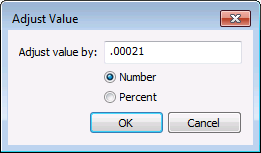
Value changes are assumed to be positive unless a minus sign "-" is used. Acceptable values are 0 - 9, "." (decimal point), and "-" (minus sign). Enter the value for the change into the text box and then click to select whether the value entered will change the selected cells by Number or Percent.
The cells selected will be ignored if they have no values (they are blank), but will be included in the edit if they have a zero (0) value.
See Using the History Grid Control for more information about access to this method via the context menu.
Deleting a Value
For circumstances such as correcting a user-entry error, you can use the individual cell editing option to delete and clear its previous value. Highlight a single editable cell, then edit the cell value by either backspacing or deleting it to create a null value cell.
The cell selected will be ignored once it has a null value (is blank), until a value is supplied.

Data Editing Considerations
Some process variable values are affected by edits to associated values, and user choice of record span in the control can affect the appearance of some values used in data calculations. Consider this when editing data that may involve the following influences.
Volume, Mass, and Energy
When editing Volume or Mass data values, consider not only the effect on Energy values, but also the effect of the resultant change to the record's Data Source or VCF value on future recalculation behavior. See Data Source and VCF below for more information.
If you manually edit or enter any process variable value that is used in the calculation configured for a device, a recalculation will occur. The calculation type utilized is as configured for the device; configuration item values can be viewed in the Configuration control. See Using the Configuration Control for more information.
When you make a manual entry or edit to a Volume or Mass value, a recalculation of the associated Energy value will occur when the respective valid Heating Value Volume or Heating Value Mass value is present. You must be careful about the order of editing, to avoid unintentionally overwriting values.
Example
If you manually edit both the Energy value and the Volume or Mass value, be sure to edit the Volume or Mass value first so that the edited Energy value will not be overwritten as the result of a recalculation.
Furthermore, once you have made manual edits resulting in a data source of User Override, recalculations of the affected record, except for the instance of an Energy recalculation triggered by an edited Volume or Mass value, will no longer occur automatically when associated configuration or gas analysis values are edited, unless configured to do so in the administrative system options.
- If it has not been configured in the system options to recalculate user-edited data when configuration/GA data is edited, you can choose to manually trigger a recalculation of a record based on further edits by using the Recalculate context menu option to recalculate the value.
- If it is configured in the system options to recalculate user-edited data when configuration/GA data is edited, resultant recalculated data values occur automatically and produce a data source of System Calculated, and therefore become the master record.
See Configuring System Options for more information about setting the Recalculate user-edited data option.
See Using the History Grid Control for more information about the using the manual Recalculate option.
Data Source
Although you cannot directly edit the Data Source value itself, consider Data Source value changes that can occur as a result of edits affecting associated data. Data Source value changes resulting from these circumstances can in turn affect recalculation behavior. See Data Source Values in the CygNet Measurement Concepts topic for more information.
Editing history data can affect the Data Source value, as a result of edits made to associated process variables. The order of edits also affects the resultant Data Source value. If you use Copy and Paste to edit both input and output process variables for the same record, the PV type (whether input or output) of the first edit performed will determine the Data Source value. Select the order of your edits accordingly. See Required Device Configuration Data for CygNet Measurement for more information about input/output data items.
Example
You want to edit both input and output process variable values (e.g. Diff Pressure and either Volume, Mass, or Energy) for the same record, using copy and paste.
- Input > User Calculated - Select the input process variable first (e.g. Diff Pressure) to result in a revised Data Source value of User Calculated.
- Output > User Override - Select the output process variable first (e.g. Volume, Mass, or Energy) to result in a revised Data Source value of User Override.
If further edits are made to records once they have produced a "user" data source type, they may result in a System Calculated value, depending on whether or not recalculation occurs, thereby becoming the master record.
Editing associated configuration or gas analysis data items can affect the Data Source value, and therefore the recalculation behavior. When saving configuration/GA edits, if you select Recalculate Flow as your recalculation process and the recalculation produces a "user" data source type, the resultant data source determines recalculation behavior as follows.
- User Entered - no recalculation occurs.
- User Calculated - automatic recalculation occurs. Note: See the discussion of VCF below for the Recalculate VCF option.
- User Override - automatic recalculation behavior occurs as configured in the System Options:
- If the Recalculate user-edited data option is selected, further editing of associated configuration/GA values triggers automatic recalculation and changes the data source value of the history record to System Calculated (thereby becoming the master record).
- If the Recalculate user-edited data option is cleared (default), editing of associated configuration/GA values does not trigger recalculation.
When recalculation of a record occurs as a result of saving configuration/GA edits, the Data Source becomes "System Calculated" and is promoted to be the master record.
See also Volume, Mass, and Energy.
Volume Correction Factor (VCF)
Consider the effect on VCF when editing data values impacting Volume. The volume correction factor is calculated by CygNet Measurement, based on the data collected from the device.
- When you edit a Volume data value directly, resulting in a data source status of User Override, the VCF is automatically recalculated, and the new value will be used in subsequent calculations.
Note: Recalculation behavior for calculations that used the previous volume value is as configured in the System Options.
- When you edit a process variable data value that triggers a recalculation of Volume to occur, the VCF still applies and is multiplied against the calculated volume.
- When you edit a configuration or gas analysis data value that affects Volume calculations, and select Recalculate VCF as your recalculation process, the VCF will be recalculated as configured in the System Options. See Saving Changes to configuration log entries for more information about recalculation options.
See Configuration and Gas Analysis Items That Trigger Recalculation for a list of additional variables that, if changed, will cause a recalculation of affected historical records.
When you create a new record, a new VCF value will appear, and is assumed to have a value of 1.0 (since the value you have entered is equal to itself).
See VCF in the CygNet Measurement Concepts topic for more information.
Integral Value (IV)
Consider the effect on Integral Value (IV) when editing component values of IV. The integral value is calculated based in part on editable variables, therefore changing the value of a component variable used in the calculation will affect the resultant IV value.
When you edit a record affecting the value of a component variable used in the calculation, the IV is not automatically recalculated. Editing Pulse Count, Differential Pressure or Static Pressure (depending on the meter and/or calculation method) could require IV to be recalculated. Therefore, when you edit one of these values, the associated IV value disappears from the data History grid (since the values upon which it was based may no longer be valid).
See IV in the FMS Configuration Items topic in the Devices section for more information about some of the values affecting IV.
Record Span
In the History Grid, data can be rolled up to one of several record spans in which to view data. Depending on the record span selected, some data items can be subject to data spreading, when necessary to generate records of an appropriate span. This affects the values displayed for several items that may be involved in data calculations.
See Data Spreading in the CygNet Measurement Data Calculations topic for more information about this process and data items it affects.
Saving Data Edits
When you Save edited data in the History Grid control, you access the Save Changes dialog box to generate a record of the change. See Using the Tools Menu for more information.
Multiple edits can be performed at one time, and will generate a single command log and audit history record when you save the edits with a single Save action. When saving edits to multiple records, either all edits will be saved successfully or, if there are errors, no edits will be saved.

